

Getting started
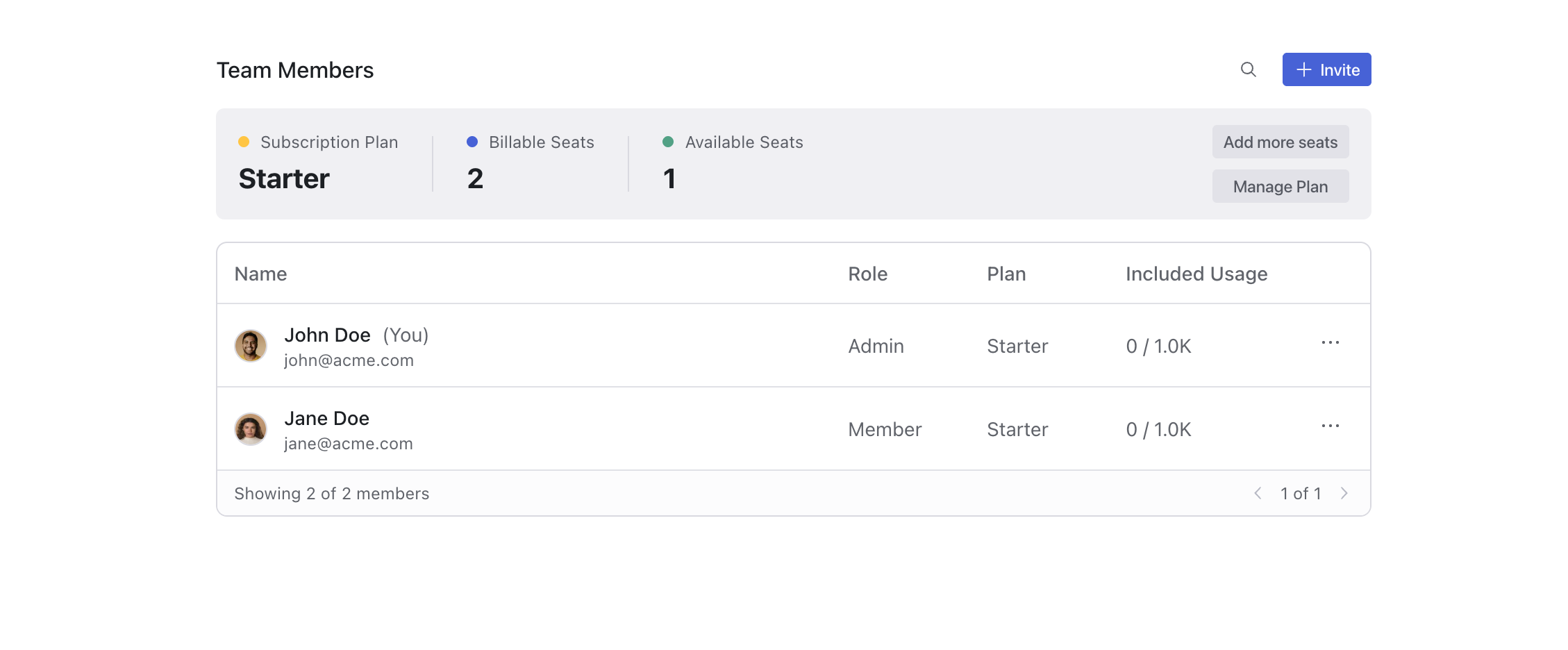
Go to magicpatterns.com/settings/team to manage your workspace. Only admins can manage the workspace; you can see who is the admin in the Team Members table under the Role column. You’ll see:- Team Members – Everyone in your workspace
- Subscription Plan – Your current plan (Starter, Business, or Enterprise)
- Billable Seats – How many paid seats you’re paying for
- Available Seats – How many seats are free to assign
Understanding seats
A seat is a paid spot on your workspace plan. Each seat gets its own monthly credits and full access to generate designs. You pay for the number of seats you need.- Paid seat – Full access, uses credits, counts toward your bill
- Free seat – In the workspace at no cost, 100 credits per month for generation
Workspace size and plans
Each plan has a limit on the number of paid seats:- Starter: Up to 10 paid seats
- Business: 11 or more paid seats
- Enterprise: 10 paid seats minimum
Common scenarios
I need to add a teammate with full access
I need to add a teammate with full access
- Go to magicpatterns.com/settings/team
- If you’re out of seats, click Add more seats first and complete the payment
- Click Invite and enter their email
- Once they’ve joined, click the … next to their name
- Click Upgrade to assign them a paid seat
Someone left the team. I want to give their seat to someone else
Someone left the team. I want to give their seat to someone else
Use Reassign Seat to move a paid seat from one person to another:
- Click the … next to the member who is leaving
- Click Reassign Seat
- Select the team member who should receive the seat
I want to remove someone's seat but keep them in the workspace
I want to remove someone's seat but keep them in the workspace
Use Cancel Seat when you want to free up a seat but keep the person in the
workspace:
- Click the … next to the member
- Click Cancel Seat
- Their seat is marked for cancellation and frees up at the end of your billing cycle
- Until then, they keep full access. After the billing cycle ends, they remain in the workspace with a Free seat
I need to remove someone from the workspace entirely
I need to remove someone from the workspace entirely
- Click the … next to the member
- Click Remove
- They are removed from the workspace
I changed my mind about cancelling a seat
I changed my mind about cancelling a seat
- Click the … next to the member whose seat is pending cancellation
- Click Undo Cancellation
- The seat stays active
I'm out of seats. How do I add more?
I'm out of seats. How do I add more?
- Go to magicpatterns.com/settings/team
- Click Add more seats
- Choose how many seats you need
- Complete the payment
I have too many seats. How do I reduce them?
I have too many seats. How do I reduce them?
Cancel seats for members who no longer need full access. Each cancelled seat
frees up at the end of your billing cycle. You cannot reduce seats below the
number of members who currently have active seats.
I want to change our plan (upgrade or downgrade)
I want to change our plan (upgrade or downgrade)
- Go to magicpatterns.com/settings/subscription or magicpatterns.com/settings/team
- Click Manage Plan
- Select a new plan and complete the change in the payment portal
When to use a Team Workspace
Team Workspaces work well when you:- Work with multiple designers or developers on the same product
- Need a consistent brand across many pages or projects
- Share design systems, components, or templates
- Want one person to manage billing for the whole team
Roles
- Admin – Can invite members, add seats, manage plans, upgrade or downgrade members, remove members, and change roles
- Member – Can use the workspace based on their seat; cannot manage billing or other members
Usage reporting
Business and Enterprise workspaces include Usage Reports at magicpatterns.com/settings/usage-reports. There you can track workspace adoption, compare activity with a team leaderboard, and review time saved. Workspaces on other plans see an upgrade prompt until you move to Business or Enterprise.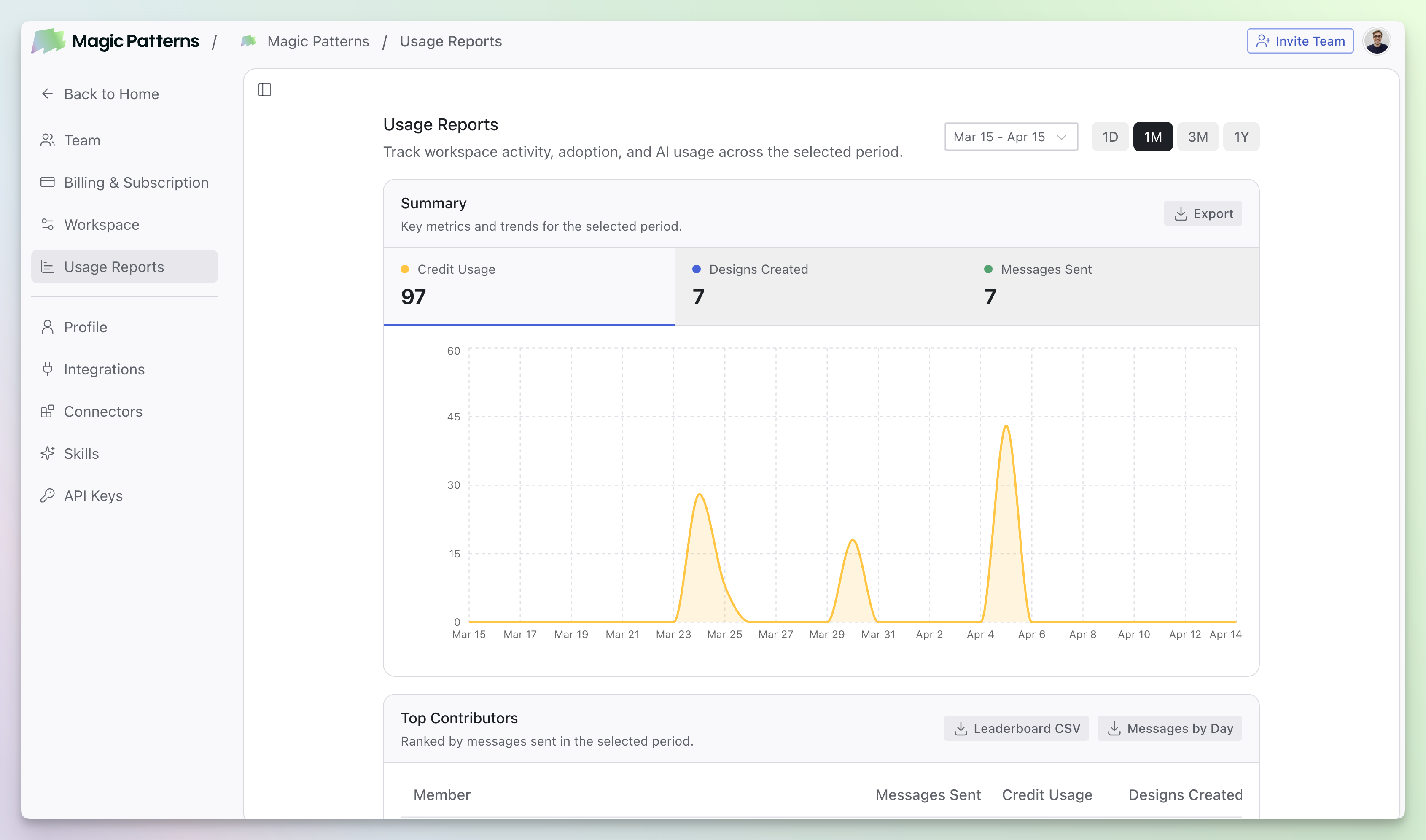
Moving files between workspaces
You can move designs between workspaces directly from the dashboard. Right-click on any file to see the option to move it to a different workspace.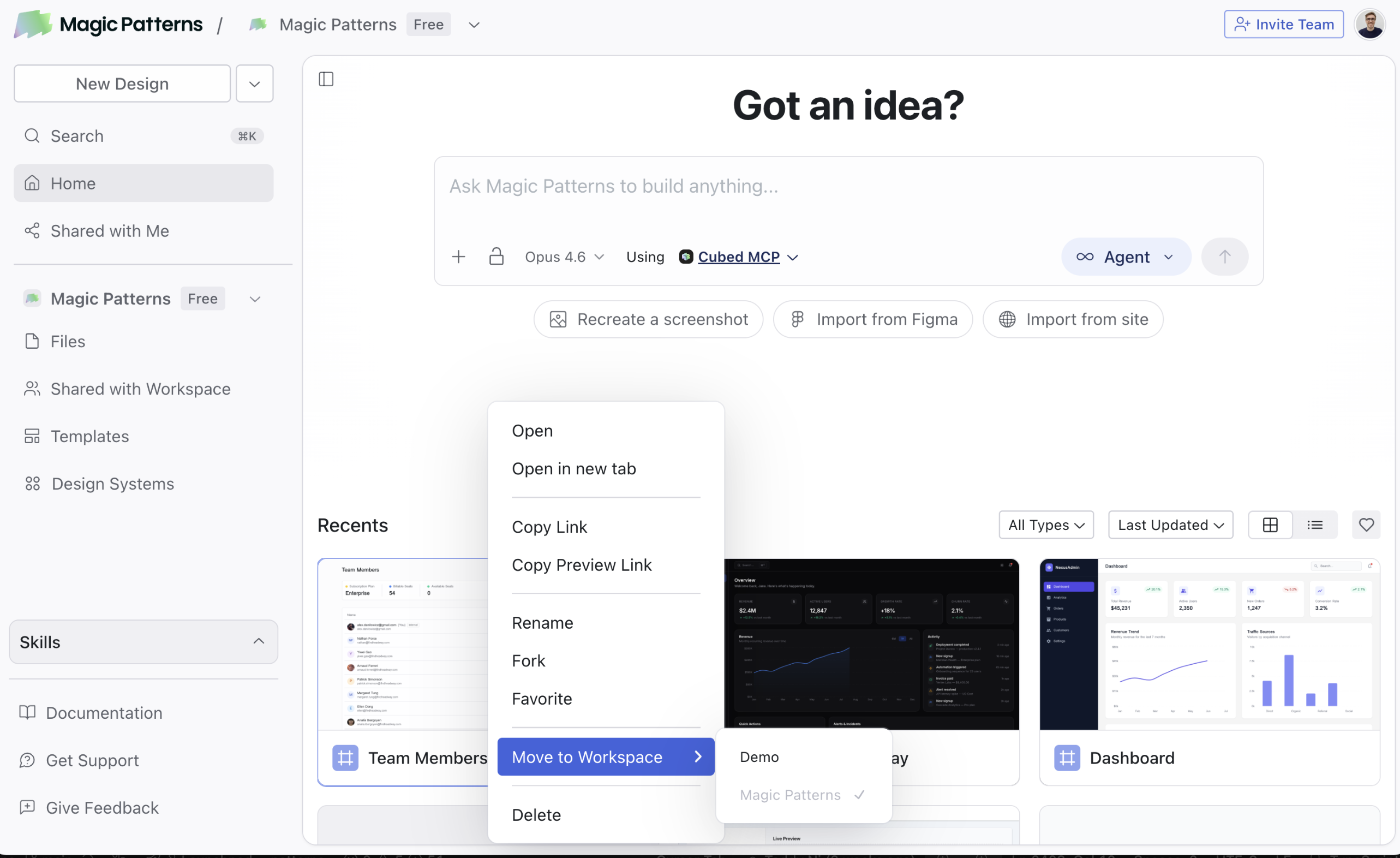 This is useful when you need to:
- Transfer a design from your personal workspace to a team workspace
- Reorganize designs between different team workspaces
- Move completed work to a shared workspace for collaboration